Before you start: All thresholds and alerts are configured in the iMatrix Cloud portal — there’s nothing to program on the label. Just attach it, power it on, and confirm it on imatrixsys.com.
At a Glance
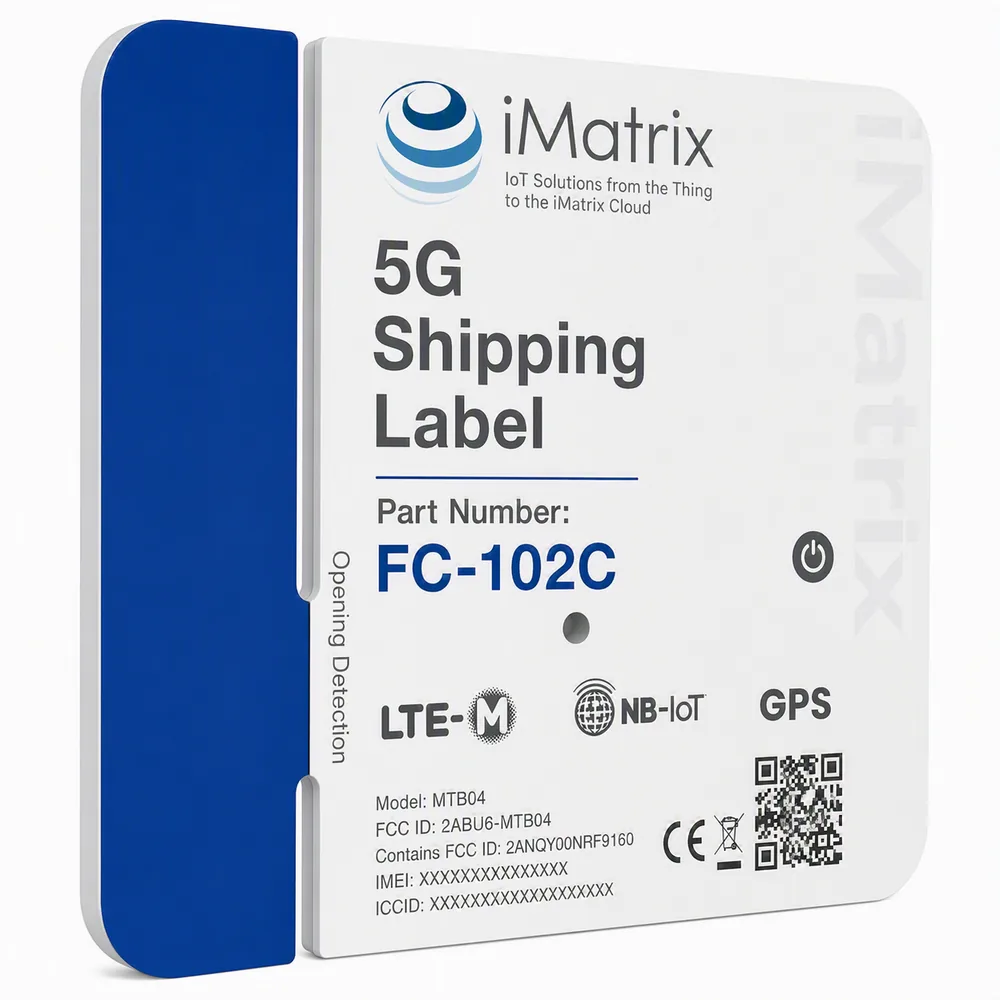
FC102C hardware overview.
| Device type | Ultra-slim 5G smart shipping label & GPS asset tracker |
|---|
| Thickness | 5.3 mm — attaches like a standard shipping label |
|---|
| Weight | 47 g (Standard) · 58 g (Opening-Detection build) |
|---|
| Cellular | 5G LTE Cat-M + NB-IoT, auto-switching · EdgeUplink global eSIM (Zones 1 & 2 included) |
|---|
| Positioning | Multi-constellation GNSS (GPS · BDS · GLONASS · QZSS) · <10 m open-sky |
|---|
| Environmental | IP67 waterproof & dustproof · −20°C to 60°C |
|---|
| Sensors | Motion (3-axis accelerometer) · ambient light · temperature · tamper / opening detection (Opening-Detection build) |
|---|
| Power | 2500 mAh rechargeable battery · up to 110-day life (24 h intervals) / ~80 days (motion-based) |
|---|
| Local interface | Single multi-function button · blue + red LED indicators |
|---|
| What's included | FC102C label · EdgeUplink eSIM pre-activated · iMatrix Cloud account · US-based support |
|---|
How to Attach
Peel, stick, and place it well.
Prepare the surface
Make sure the surface of the package or container is clean, dry, and flat so the adhesive bonds well.
Peel and attach
Peel off the adhesive backing and press the label firmly onto the flat surface. Keep the ambient-light sensor port and the power button uncovered so light detection and manual status checks keep working.
Place it for a clear signal
The label is IP67-rugged, but for the fastest GPS lock, position it with a clear view of the sky and away from heavy metal shielding where you can.
Activation & Power
One button, simple LED status.
The FC102C is operated with a single multi-function button on the front of the label, with a blue and red LED for status.
Power on
Press and hold the button for 3.6 seconds. The blue LED lights to confirm the device is starting up — it then connects on its pre-activated EdgeUplink eSIM.
Power off
Quickly press the button twice, then immediately hold it until the blue LED flashes 5 times.
Check status
Press the button once at any time to show the current state on the LED.
Solid blue — working normally.
Solid red — connection issue, usually no cellular signal. Move the package toward an exit or outdoors to reconnect.
Red flash every 20 s — battery below 20%. Recharge the label before the next shipment.
Managing in iMatrix Cloud
Everything is set up on imatrixsys.com.
There’s nothing to program on the label — all tracking, alerts, and thresholds are managed in your iMatrix Cloud account.
- Track in real time: log in to see the current location and full history of every shipment on the live map.
- Set alerts: get notified on temperature excursions, tamper / opening detection, and unexpected movement — thresholds are configured remotely.
- Export data: download detailed reports on the environmental conditions your cargo experienced in transit.
Service Plans
Choose how the device reports.
Locate · Daily inventory
Know where it is, on a schedule
- Scheduled check-ins (Mode A — power saving)
- Longest battery life — up to 110 days per charge
- Daily location history & inventory map
- Set-and-forget for one-way and long-haul shipments
Command · Active tracking & security
Know the moment it moves
- Programmable, motion-triggered reporting (Mode B)
- Motion, light, temperature & tamper alerts
- Recovery-grade live tracking when something moves
- Full event history & route replay
Pricing for the FC102C is in progress — it uses the same two-tier model as the rest of the FleetConnect asset-tracker line. Check FC102C availability →
Health & Troubleshooting
Keep it reporting reliably.
- Red light on a status check? The label is in an area with poor cellular coverage. Move the package toward an exit or outdoors so it can reconnect.
- No data in the portal? Give the label a gentle shake — that triggers the motion sensor and forces an immediate status update to the cloud.
- Still showing red? Reset the network by double-clicking the button three times within 3 seconds; the red light flashes five times to confirm.
- Low-battery warning (red flash every 20 s) means the charge is below 20% — recharge the label before the next shipment.
- Keep the sensor port and button clear. Don’t cover the ambient-light sensor or the power button with opaque tape, or light-detection and manual status checks won’t work.