Decode CAN traces, edit DBCs, build Product JSON configs, look up DTCs, and ship firmware to FC-501 hardware. One workspace for OEM engineers and integrators — Local mode for offline work, Dev/Prod environment switching, and a full Swagger API.
A typical OEM CAN engineer juggles 5–8 tools, half of them paid, none of them aware of each other. The Workbench collapses the entire toolchain into a single sign-on, cloud-synced workspace.
Browser-based. Local-first workspaces sync to dev / prod. Workbench seats are bundled with your FC-501 OEM program — no separate procurement, no license server, no per-engineer renewal cycle.
The Workbench groups every OEM engineering task in a single tabbed UI. Workspaces are local-first, sync to dev/prod when you're ready to ship.
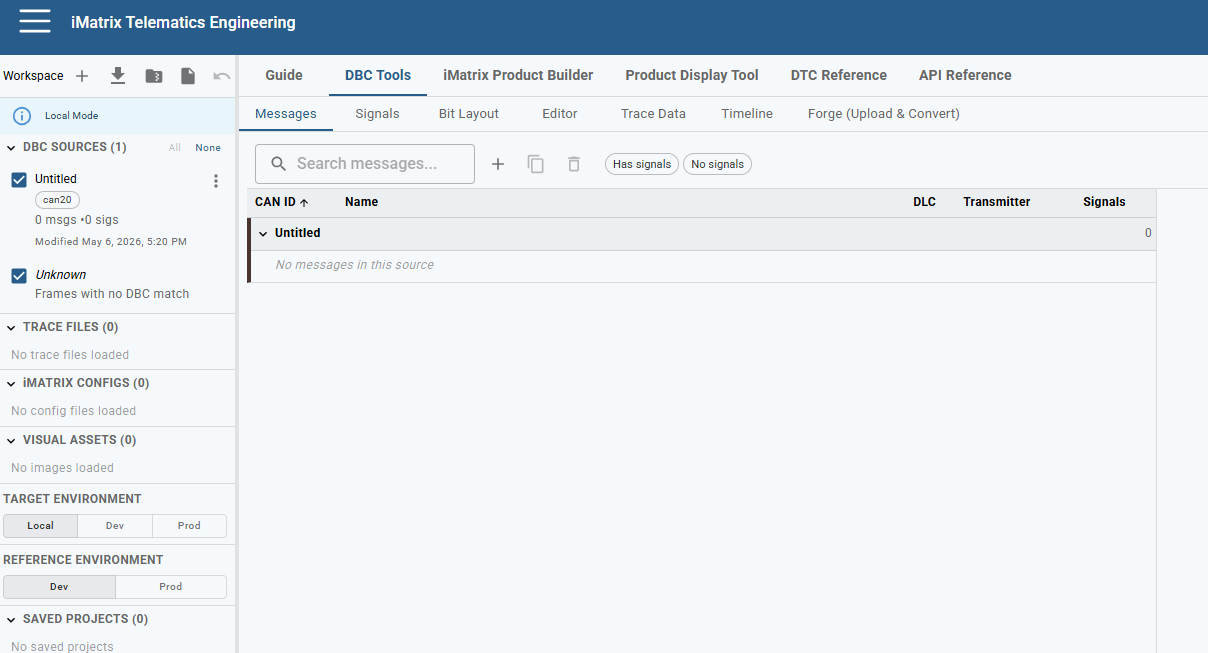
Edit, decode, validate. 7 modes covering messages, signals, bit layout, raw text editor, trace decoder, signal timeline, and file converter.
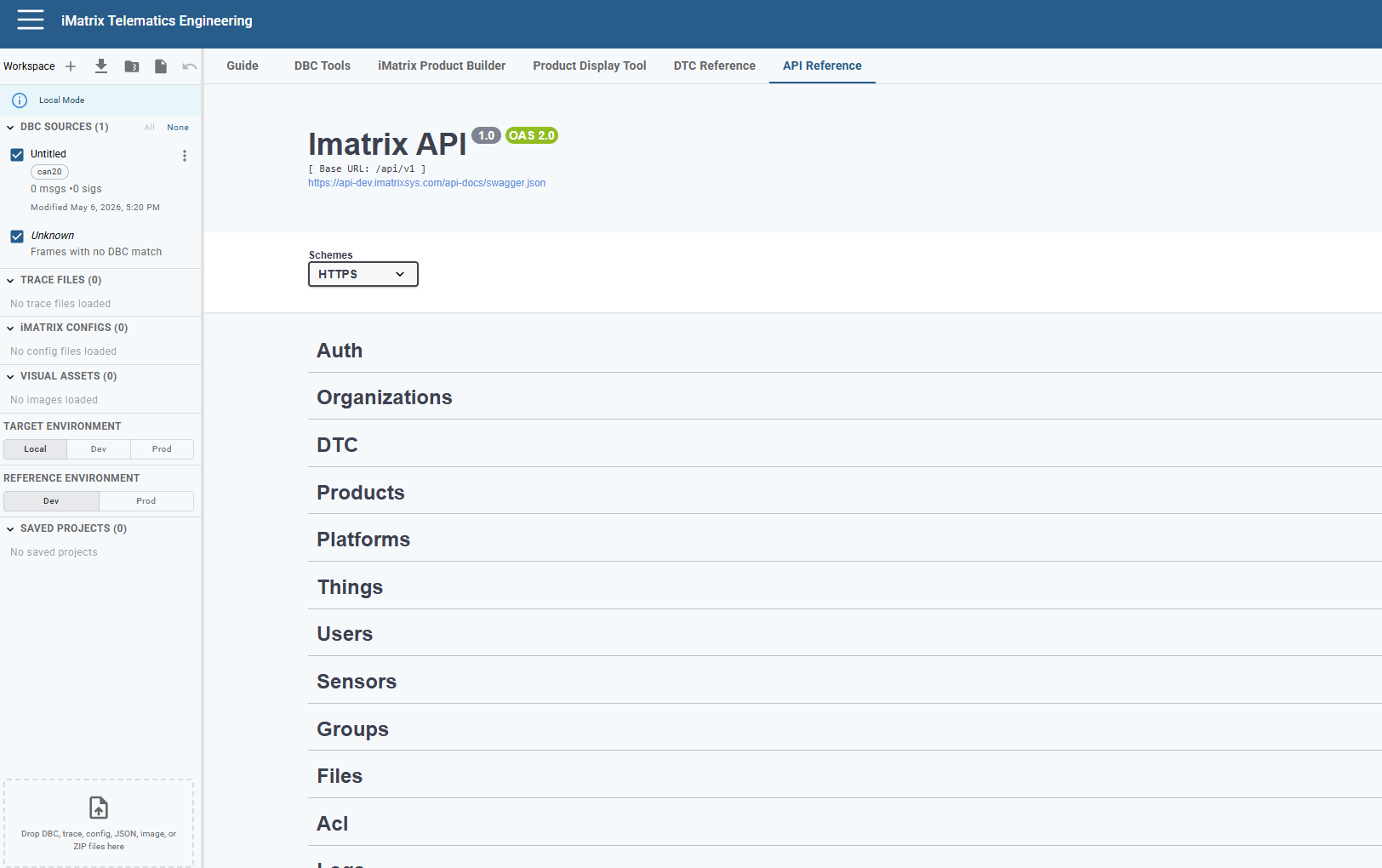
7 modes → 02End-to-end device config. Generates Product JSON from your DBC and pushes to FC-501 OTA pipeline.
Build configs → 03Visualize and edit Product JSON files. Preview deployment configs before they ship to fleet hardware.
Preview JSON → 04Lookup, search, stats, manufacturer-specific definitions. P0420, B0001, U0100 — the full database.
4 views → 05Full Swagger / OpenAPI 2.0 spec. 12+ endpoint groups: Auth, Things, Sensors, DTC, Files, Logs, more.
Browse endpoints →Browse messages and signals, see the bit-level packing, edit the raw text, decode a captured trace, plot signal values over time, or convert between file formats. All from the same workspace.
Browse and edit CAN messages. Filter by "has signals" / "no signals" to find unmapped IDs in your trace.
Inspect and edit signal definitions — bit start, length, byte order, scale, offset, unit, value tables.
Visual bit-level signal packing diagram. Catches overlap and gaps before they become firmware bugs.
Raw DBC text with syntax awareness. For when you want to paste in a snippet from another tool or hand-tune.
Decode CAN bus recordings against your DBC. Drop in a `.trc` or `.asc` and see decoded signal values frame-by-frame.
Plot signal values over time from any trace. Spot intermittent faults, validate calibration drift, debug race conditions.
File format conversions in-place. Upload, transform, download — without round-tripping through external tooling.
Diff any two workspace files — spot what changed between DBC revisions or trace runs.
Capture in CANalyzer → import DBC in CANdb++ → decode → export CSV → trend in Excel → flip back to the editor when the bit layout looks wrong. Every signal investigation is its own context-switching marathon.
~30 min per signal · 6+ months for a new vehicle lineDrop the trace, click Timeline, the signal is plotted. Bit Layout catches packing bugs the moment you draw them. Wayne AI generates the first-pass DBC; you refine it inline. No license servers, no exports, no Excel.
Seconds per signal · Hours to a production DBC
The Product Builder takes your validated DBC and generates a Product JSON — the device config that ships to FC-501 firmware. The Display Tool lets you preview and edit those configs before they hit production fleets.
/assets/img/workbench-product-builder.png
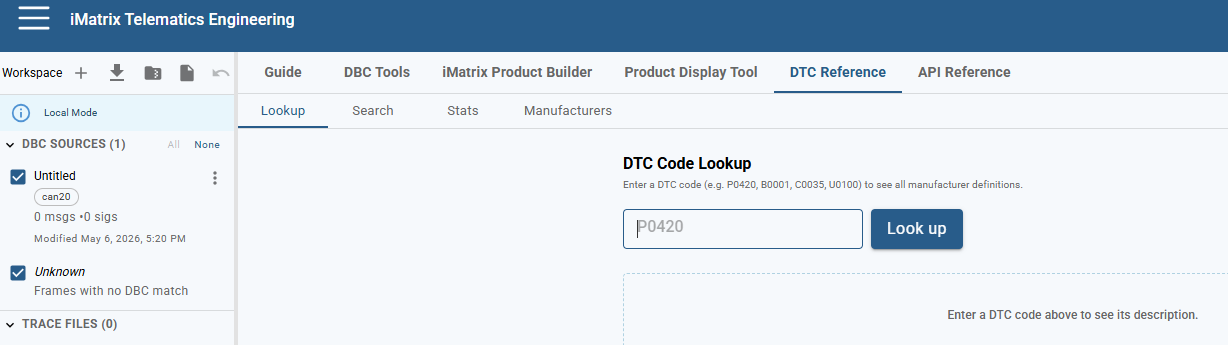
Built-in reference for OBD-II, J1939, and proprietary OEM DTC codes. Lookup by code, search by description, see frequency stats, or browse by manufacturer.
Enter a DTC code (P0420, B0001, C0035, U0100) — instantly see all manufacturer definitions.
Search by description — "catalyst efficiency", "throttle position" — find every matching DTC.
Frequency stats across the database. Spot the most common DTCs your fleet hardware will see.
Browse OEM-specific DTC libraries. Manufacturer-defined codes that aren't in the public OBD-II spec.
Google the code → confirm against the SAE J1979 reference PDF → cross-check the OEM service manual → check internal Confluence for any prior incident notes. Repeat for every fault on every vehicle, every triage call.
~10 min per lookup · hundreds per fleet diagnostic cycleType the code, see every definition — public OBD-II, J1939, plus OEM-specific entries. Search by description ("catalyst efficiency"). Sort by frequency to know which DTCs your fleet will see most. Manufacturer browser surfaces codes that aren't in any public spec.
< 1 second per lookup · entire database always current
Every iMatrix Cloud endpoint is documented inline. Base URL /api/v1. HTTPS only. Try-it-out is live against the dev environment.
The Workbench's real value isn't a feature checklist — it's the moments when something's wrong on a customer's truck and you need an answer in minutes, not days. Each of these is a real OEM debug pattern.
The Workbench is the middle layer. Wayne AI auto-maps your bus and produces a draft DBC in hours. The Workbench is where engineers refine, validate against captured traces, plot signal behavior, and generate Product JSON in days. FC-501 OTA pushes the config to deployed vehicles in minutes. End-to-end: order to first vehicle in production inside one quarter.
Auto-maps your J1939 / CAN bus from a 5-min trace. Outputs a draft DBC + signal database — 340× faster than manual reverse engineering.
Engineers refine signals, decode validation traces, plot timelines, generate Product JSON. Everything in one workspace, local mode for offline work.
Workbench pushes the Product JSON to FC-501 OTA. Deployed vehicles pick up the new config on next handshake. Validate before promoting Dev → Prod.
Drag any of the formats below onto the workspace sidebar. Standard CAN tooling files plus iMatrix-native formats.
Three other parts of iMatrix talk to the Workbench directly. Dive into any of them to see the bigger picture.
Auto-maps your CAN bus 340× faster than manual engineering. The DBC it generates lands directly in your Workbench.
About Wayne AI → DownstreamThe Workbench builds Product JSON configs that deploy to FC-501 hardware via OTA. SDK, dev seats, production scaling.
FC-501 platform → Use CaseThe full OEM solution — gateway, signal mapping, fleet APIs. The Workbench is how engineers build it.
OEM solution →Free for all iMatrix Cloud accounts. Sign in, open Telematics Engineer from the app menu, and drop in a DBC or a trace to start.