Adding a Sensor in Guest Mode
Guest mode is the solution for quickly adding a sensor and seeing data in seconds.
See this short video or read the guide below to learn how to add a new Neo sensor:
Guest mode is the solution for quickly adding a sensor and seeing data in seconds.
See this short video or read the guide below to learn how to add a new Neo sensor:
First, download the mobile application from your app store. Then open the application.
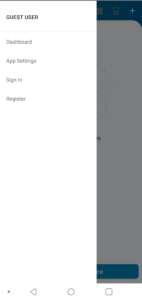 On the upper left side, there’s a sidebar menu. When you click it, it will show you that you’re in guest mode if you don’t sign in or register.
When you go to your home screen, you’ll see a screen like this if you haven’t added any devices yet.
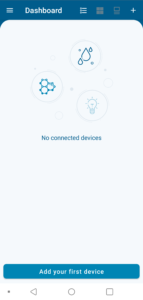 Choose the method you prefer to add your device. We recommend scanning the QR code found on the back of your sensor.
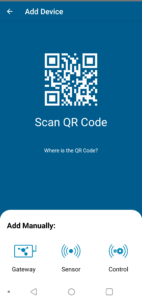 You will get a pop-up asking for permission to use your camera. Select ‘Yes’ to scan the QR code with your smartphone.
Next, hold the button on the back of your sensor for a moment to configure it. 
Once you add your sensor, you’ll be given the option to customize your sensor name and upload a cover photo for reference. This isn’t required, and you can change these settings later.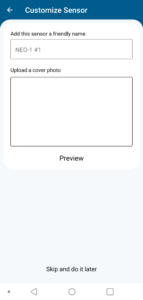
If you plan on using multiple sensors in different areas, we recommend naming sensors to make it easier to manage them in groups.
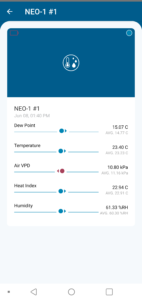
Now you’ll see your device on the home screen. You can click on any individual sensor to see current stats and environmental readings.